Entity Type Management
This document describes how to customize entity types to extend the asset management capabilities of the unified catalog.
Create Entity Type
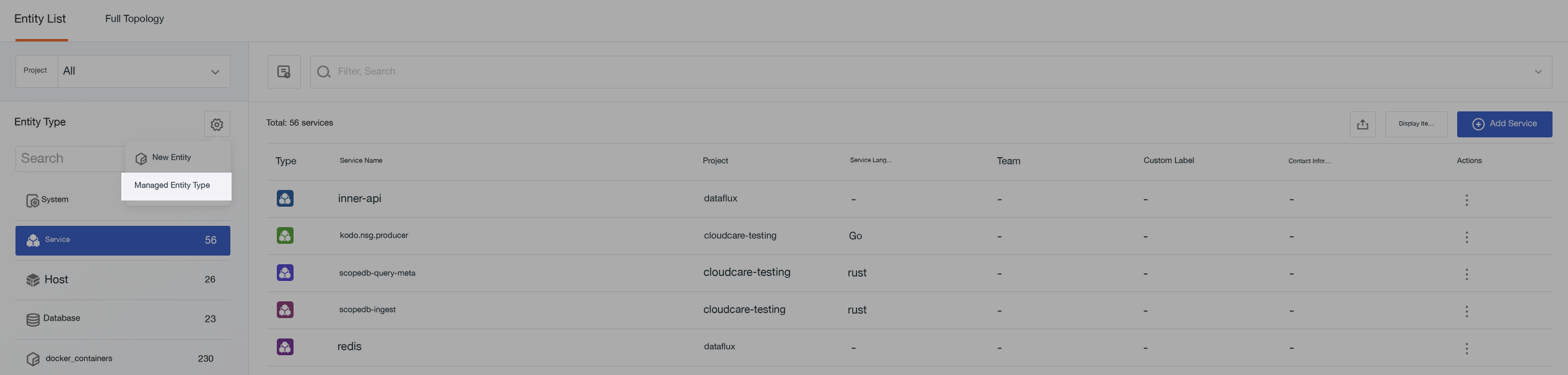
- Navigate to Unified Catalog > Entity List.
- Click the "Settings" icon in the left sidebar and select "Manage Entity Types".
- Click "Create Entity Type" in the top right corner of the pop-up window.
- Fill in the configuration information:
- Entity Type: A globally unique identifier, such as
kubernetes_deployment. - Display Name: Enter the display name for the entity type.
- Description: Optionally add a description explaining the purpose of this type.
- Entity Type: A globally unique identifier, such as
- Click "Save" to complete the creation.
Note
- Entity type identifiers must be unique. If a duplicate exists, the system will display an error.
- Before deleting a type, ensure no entities are associated with it. Otherwise, deletion will fail.
Manage Existing Types
In the "Manage Entity Types" pop-up window, you can view all entity types within the current workspace, including system-preset and custom types.
Type Categories
The list displays the display name, entity type identifier, description, entity count, and category label for each type.
| Category | Included Types | Operation Permissions |
|---|---|---|
| System-preset | System, Service, Host, Database, Queue | Only supports "Manage Entity Views". Editing or deletion is not allowed. |
| Custom | User-created types (e.g., K8s resources, business domains) | Supports editing, deletion, and managing entity views. |
Configure Correlation Views
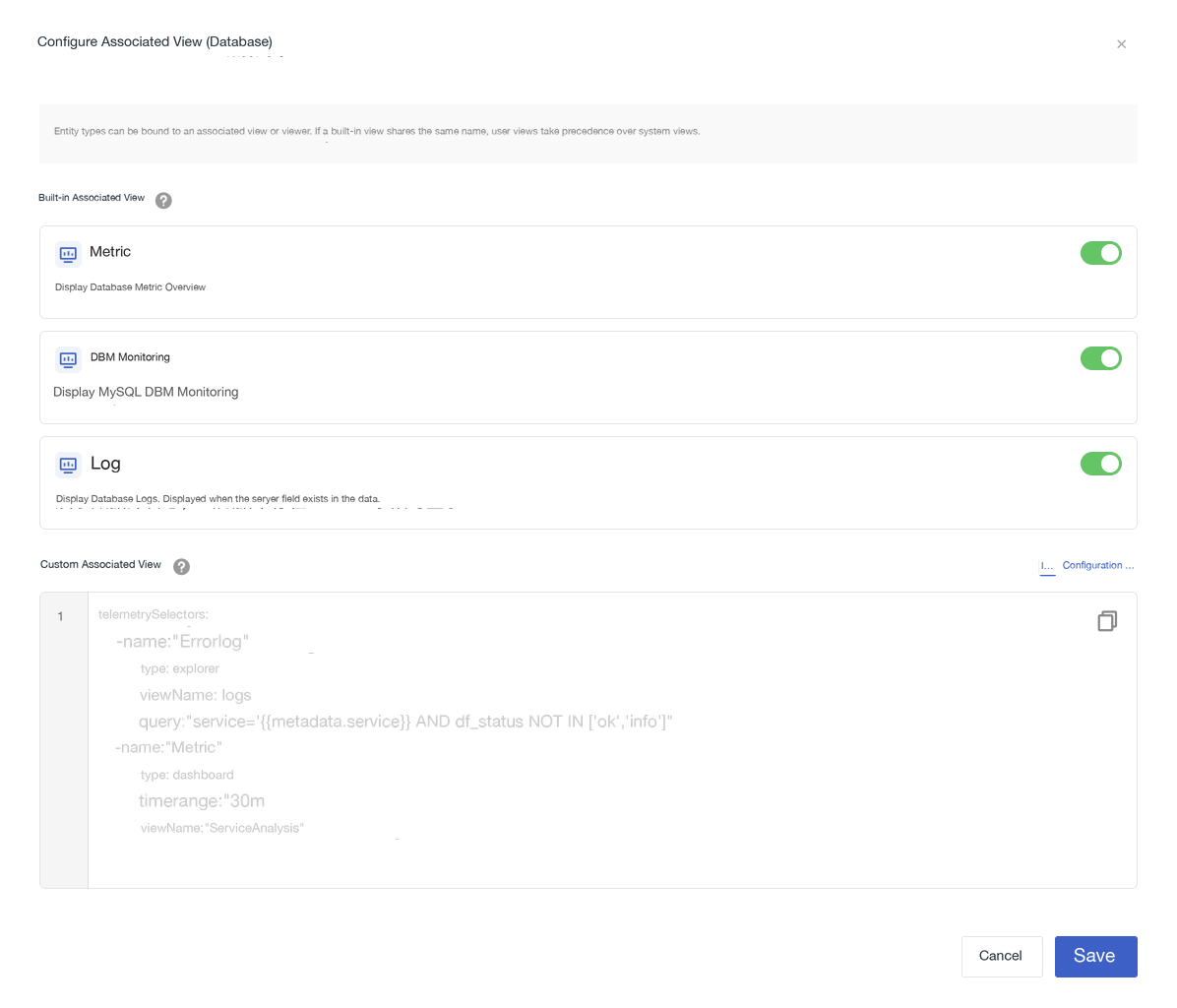
Click the icon on the right side of an entity row to enter the correlation view configuration page. The page is divided into two sections: Built-in Correlation Views and Custom Correlation Views.
Built-in Correlation Views
These are correlation views provided by the system by default, which can be enabled or disabled as needed.
- If official built-in views exist for the current entity type, they will be automatically listed on the page, initially in the Enabled state.
- Enable/Disable: You can manually turn the display of the current view on or off.
Once disabled, the view will no longer be displayed on the Entity Details page.
Custom Correlation Views
Supports custom configuration of correlation views according to a specified format.
After configuration, all entities of this type will display the corresponding tab on their details page, facilitating quick drill-down analysis.
Click to view Configuration Details.
After configuration, all entities of this type will display the corresponding tab on their details page, facilitating quick drill-down analysis.
Edit and Delete (Custom Types Only)
For custom types, click the icon to perform the following actions:
- Edit: Modify the display name or description.
- Delete: The system will check if any associated entities exist. If entities are found, deletion will be prevented.
System-preset types do not support editing or deletion; only correlation view configuration is allowed.